

Key call-outs in this release
What’s new in Books and Reporting
Continue working while PDF bursts run in the background
You can now generate PDF bursts without interrupting your work. Burst processing is handled directly by Planning Analytics Workspace, so you can continue using the application while burst output is generated in the background.
Apply Themes to Workspace Books.
Book authors can apply predefined themes to Workspace books to quickly change their appearance and that of widgets. Book themes are distinct from the existing Workspace themes feature.
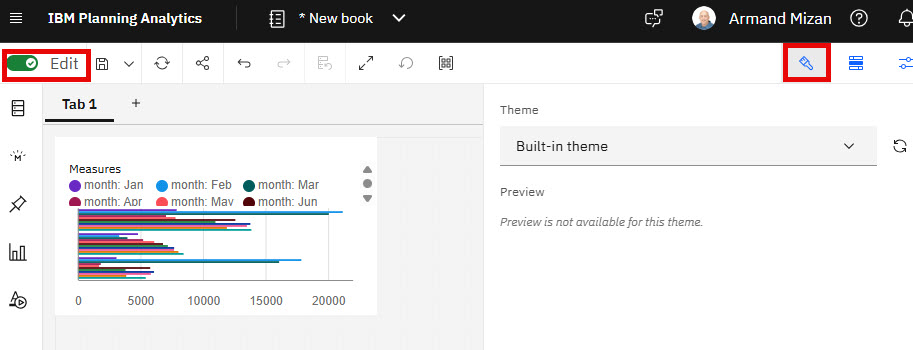
When a book is in edit mode, book authors can select a theme by clicking the Theme icon and selecting a theme from the Theme drop-down list. The selected theme is applied to the book and its widgets.
Administrators can create and manage book themes in the Excel and Customisations tile on Planning Analytics Administration.
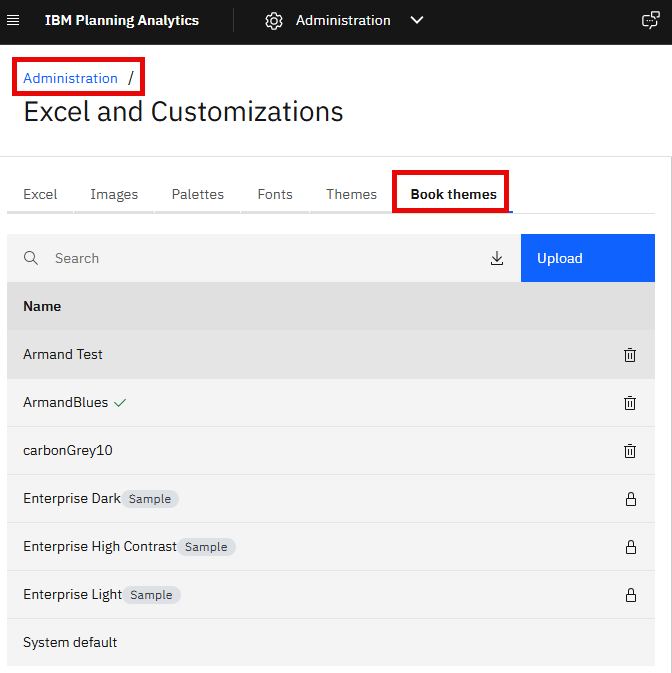
To add a new book theme, download an existing book theme and personalise it. The downloaded file will be in a .json format. Then upload the book theme with the changes.
What’s new in plans and applications
Import and export assignments in data accountability tasks
Plan owners can now import and export contributor, approver, and viewer assignments for data accountability tasks.
The Import icon and Export icon are available in the Assignments section in a data accountability task.
Click the Import icon to populate assignments from a CSV file.
Click the Export icon to download assignments as a CSV file.
The Data Accountability flag must be enabled to import and export assignments.
The import file must contain the following required columns: Member, Assignment, and Action. Y
You can leave the Assignment value blank when a contributor, approver, or viewer assignment is not required.
For more information, see Add tasks to a plan and assign contributors, approvers, and viewers.
Associate workflow processes when reverting task or member submissions
Plan owners can now associate a workflow process with task or member submission reverts in both regular tasks and data accountability tasks.
To use this capability, update the workflow processes on the database to the latest version.
In the Add process for events panel, select Revert submission in the events drop-down list and then select the process to associate with that event.
In regular workflow tasks, the task submission is reverted. In data accountability tasks, the member submission is reverted.
For more information, see Revert a submitted task or member.
Control member access in Data Accountability tasks with single member set synchronisation
Selection behaviour in Data Accountability tasks has changed: when a contributor, approver, or viewer selects a member from the Data Accountability hierarchy, a single member set is now synchronised with the assets in the task, limiting the visible hierarchy to the selected member only.
Previously, selecting a member from the Data Accountability hierarchy synchronised that member to the books, views, and Websheets in the task. Now, the selected member is also synchronised as a single member set to the hierarchy in those assets.
When a user opens the hierarchy drop-down to select another member, the hierarchy shows only the selected member.
This change applies to all existing and new plans that use Data Accountability tasks for contributors, approvers, and viewers.
What’s new in modelling
No new updates in modelling in this release
What’s new in administration
Automatic resizing of Universal Report header columns
Administrators can now configure the AutofitUrHeaderCells Websheet parameter directly from Planning Analytics Administration.
The AutofitUrHeaderCells parameter is now available as a Websheet configuration setting in Planning Analytics Administration. This enhancement makes the parameter easier to discover and configure without manually editing Websheet configuration settings.
When AutofitUrHeaderCells is set to true, Universal Report and Static Universal Report columns are automatically resized to fit the length of header elements when the report is rendered.
When AutofitUrHeaderCells is set to false, automatic resizing is disabled and existing column widths are retained.
The default value for AutofitUrHeaderCells is true.
For more information, see Configure Spreadsheet Services
Reduce alert noise by delaying CPU utilisation notifications.
You can now configure a delay period for CPU utilisation alerts directly from the Alerts tab on the Database settings page in Planning Analytics Administration.
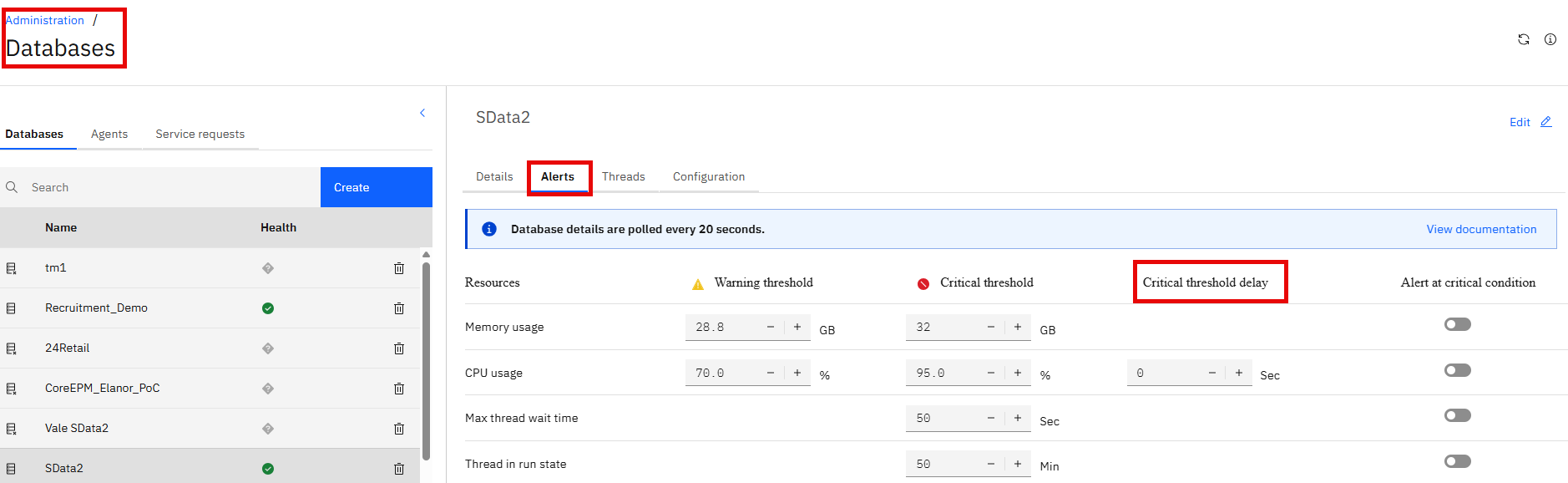
The delay specifies how long CPU utilisation must remain above the threshold before an alert is triggered, so brief, self-resolving spikes no longer generate unnecessary notifications.
This keeps alerts meaningful and actionable, reserved for sustained high CPU usage that warrants attention.
When CPU utilisation exceeds the threshold but returns to a safe level before the delay period expires, no alert is generated. This prevents notifications for transient CPU spikes that resolve on their own.
When CPU utilisation remains above the threshold for longer than the configured delay period, an alert is generated.