

Key call outs in this release
Changes in Modeling
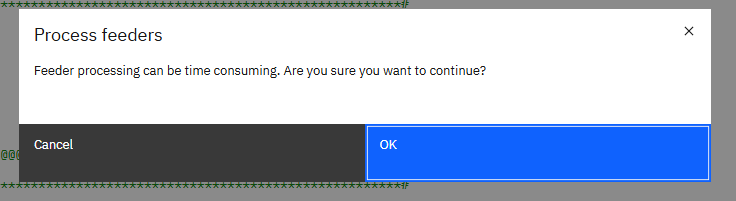
Enhanced Process Feeders Button in the Rules Editor
Enables running cube feeder processing directly from the rules editor without manually running a TurboIntegrator process. Using the Process feeders button executes the CubeProcessFeeders function for the cube being edited.
- Open rule editor and select the process feeders button

- Confirm to run feeder processing
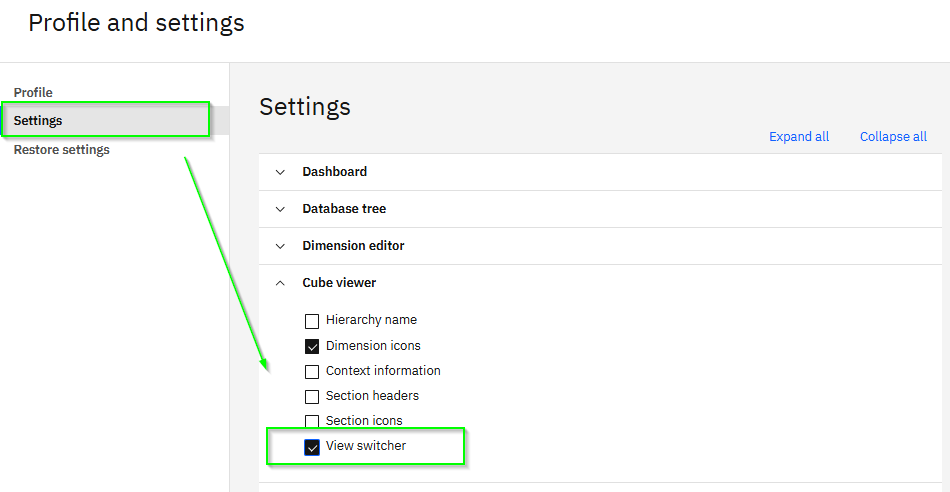
New User Setting for the View Switcher
Allows users to enable or disable the view switcher by default for their profile. When enabled, the view switcher is automatically active for new cube views added to books or created in the modelling workbench.
Copy and Move Files in TM1 12
Enables copying and moving files directly using the File Manager in TM1 version 12. Files can be copied from the interface and moved by pasting into a different folder, simplifying file management.
Changes in plans and applications
Plan Co-Owners See All Members When Viewing a Plan
Allows plan co-owners to view all members in data accountability tasks when accessing the plan contribution experience, including members without assigned contributor or approver Workspace groups. Co-owners can also take ownership, submit, release ownership, approve, or reject any member directly from the plan.
Note: This behaviour applies automatically when a user accesses the plan as a plan co-owner in the contribution experience.
Changes in books and reporting
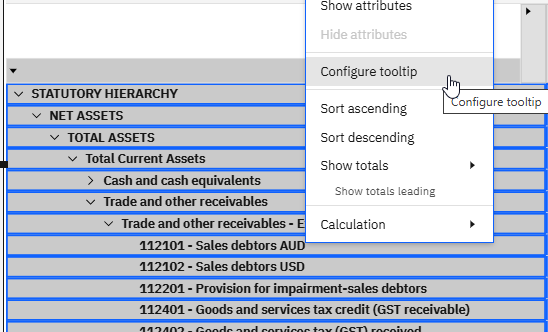
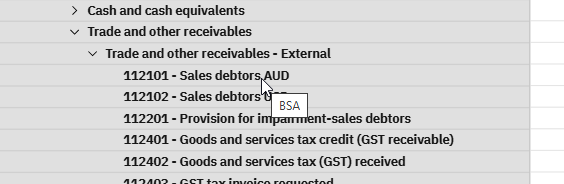
Member tooltip in the cube viewer
Configure which member property or attribute is displayed as a tooltip in the cube viewer to provide additional context for users. By default, the tooltip shows the member unique name.
An alternative attribute can be selected to improve clarity when hovering over members. If a member has no value for the chosen attribute, the tooltip falls back to displaying the unique name.
Note: The tooltip setting is viewer-specific and must be configured individually for each cube viewer. Select descriptive attributes to maximise usability, especially in large or complex dimensions.
-
- Right click on the thumb cell, select ‘Configure Tooltip’
-
- Choose the desired attribute
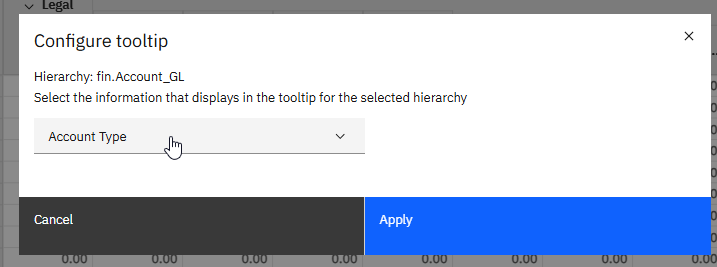
- Hover over member to review
MDX View Lock Status
Displays a lock icon in the cube viewer when a view uses MDX query parameters. The lock indicates that the view structure cannot be modified, including editing member sets or moving dimensions between axes. The icon is shown automatically in the view overview area and cannot be removed.
Note: If the overview area is hidden, the lock icon is not visible, but the MDX restrictions still apply.
Font Options for Hierarchy and Member Formats
Enables font formatting for hierarchies and members in cube views. The Format manager supports font family, font size, bold, italic, and underline within the existing hierarchy and member formatting sections. This improves visual consistency and allows key hierarchies or members to be highlighted in Workspace books.
- Open Format Manager and set hierarchy and/or member formatting
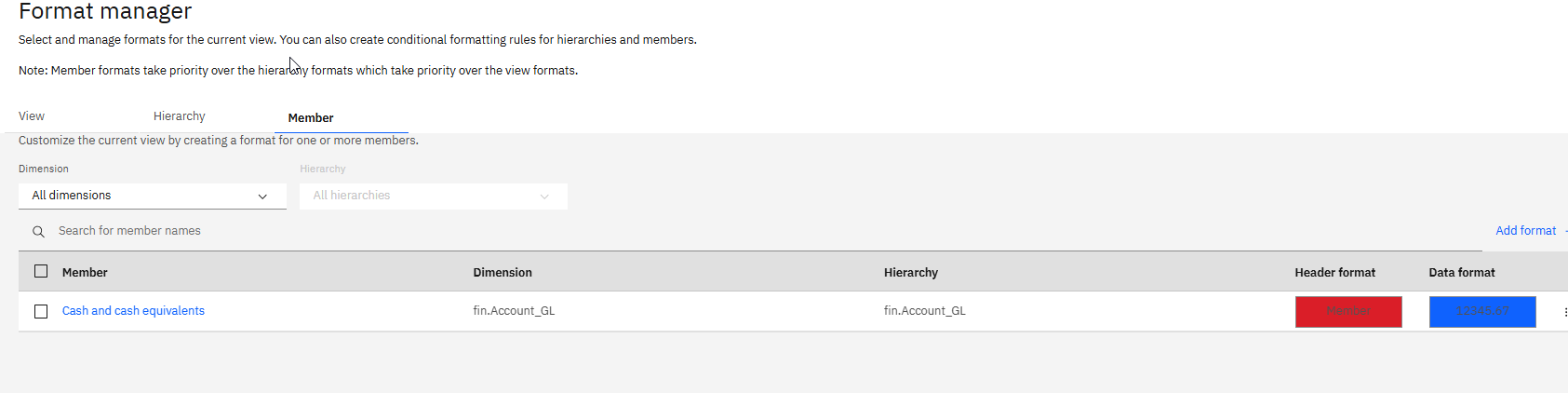
- Review the results
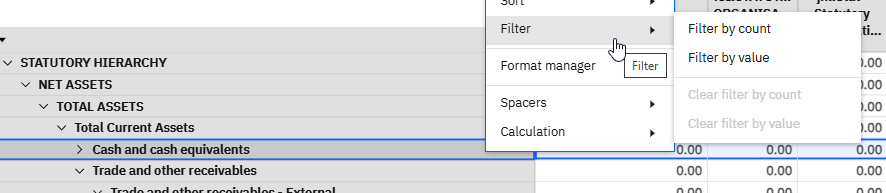
General Improvements to Cube Viewer Filters
Enhances value-based filtering in cube views by adding additional string operators, including Is empty, Is not empty, and Not equal (<>). The filter dialog now automatically detects whether the selected member requires numeric or string filtering, reducing manual switching and improving usability. The Not equal (<>) operator is also available when filtering by member name in the Set editor.
Changes in administration
Manage Capabilities
Allows user capabilities to be reviewed and managed by capability instead of by individual user. Administrators can select a capability to see which users have it enabled and enable or disable access for individual users from a single interface. This simplifies capability-based access management in Users and Groups.
Note: This feature is available only to users with the required Capabilities access permission. Administrator access alone may not be sufficient.
Unlock Access or Reset Passwords for FileShare Accounts
Allows subscription administrators to unlock access or reset passwords for FileShare accounts directly in Planning Analytics Administration, without raising an IBM Support ticket. This provides a self-service option to restore access or update credentials for individual or all FileShare accounts within an environment.