

Key call-outs in this release
What’s new in Books and Reporting
Reuse shared images across books with the image gallery
You can now add centrally managed images to your books without having to upload them multiple times.
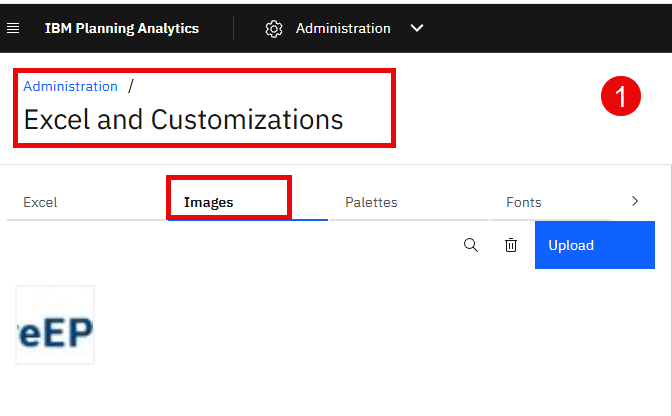
An administrator uploads images to a shared image gallery, making them available for you to reuse when creating or editing books.
This helps you maintain visual consistency across books and reduces duplicated effort. The image gallery supplements the existing ability to embed images directly in a book.
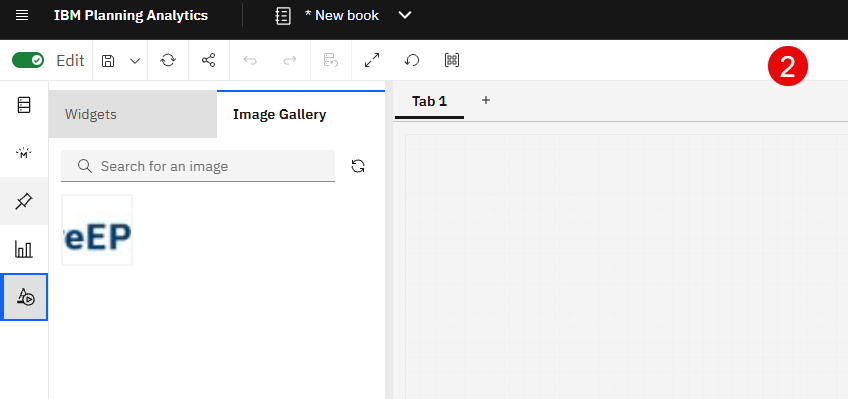
When you edit a book, you open the widget panel and select the image gallery. You can add images by double-clicking or dragging and dropping them.
Use Planning Analytics Workspace REST API for content management
The Planning Analytics Workspace REST API lets you build scripts, tools, or third-party applications that interact with Workspace functionality.
This initial release provides endpoints for content management, with additional endpoints planned for future releases.
For more information, see Planning Analytics Workspace REST API
What’s new in plans and applications
Assign approvers without contributors in data accountability tasks
You can now assign approvers to members in a data accountability task without also assigning contributors.
This provides greater flexibility in defining approval responsibilities across different levels of the data accountability hierarchy.
You can activate and work with tasks even when approver assignments are not yet sufficient for full approval, allowing you to refine approval structures over time.
Revert submitted tasks before approval
You can now undo submitted tasks and member submissions that haven’t been approved or rejected yet.
As a contributor, you can revert your own submissions or submissions made by others in the same contribution group. This capability applies to both regular tasks and data accountability tasks.
In data accountability tasks, you can revert individual member submissions to their previous owner and workflow state.
After you submit a task or a member, you can switch between Pending tasks and Submitted tasks in the planning panel.
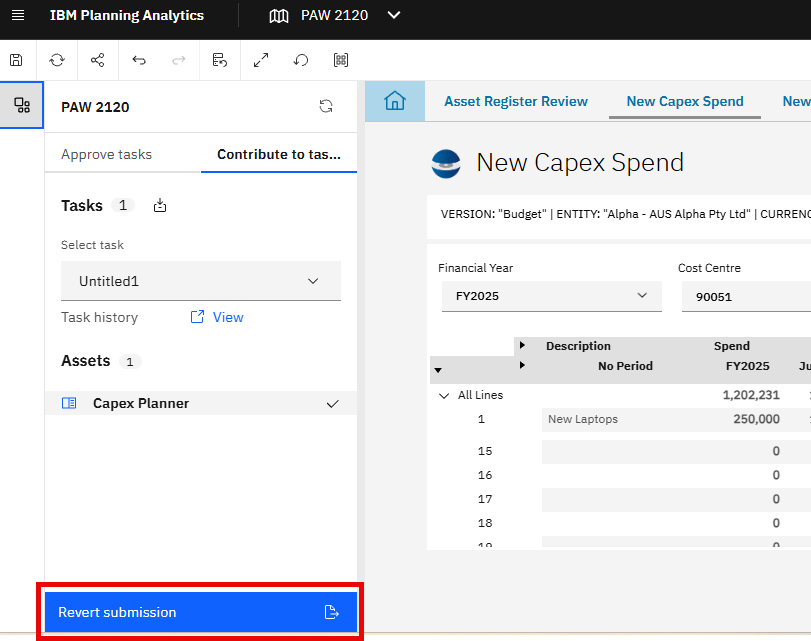
From Submitted tasks, select a submitted task or member and use the new Revert submission button (or Revert member submission for data accountability tasks) to undo the submission.
If you revert a child member submission under a consolidated node, the parent member is also reverted if it was previously submitted.
Disable submission on data accountability tasks
You can complete data accountability tasks without taking ownership or submitting them.
When you disable submission on a data accountability task, you see a Complete button instead of the standard submission workflow.
You mark the task complete after selecting a member, without submitting the task or taking ownership.
Enable or disable submission in the task editor. You can mix tasks with submission enabled and tasks with submission disabled within the same plan
For more information, see Add tasks to a plan and assign contributors and approvers.
Set data scope on tasks in plans
You can define the data context that applies when you work on plan tasks.
Set a data scope to control which sets or members apply when you open books, views, or websheets from a task.
When you access an asset through a scoped task, the assigned set or member establishes the context, provided the asset uses the scoped dimension.
You can configure data scope in the task editor by assigning a subset or member to one or more dimensions. Before you do this, you must enable the TM1 database for the plan.
You can use data scope with regular tasks and data accountability tasks.
When you use it with data accountability tasks, you cannot apply data scope to the accountability dimension, but you can apply it to any other dimension.
For more information, see Setting data scope for plan tasks.
Pass member unique names to workflow processes
You can now pass member unique names to string parameters in workflow processes.
When configuring workflow processes, you can choose to pass a member’s unique name rather than their display name.
This applies to workflow actions such as Take ownership, Submit, Release ownership, Approve, and Reject in data accountability tasks.
Passing the member’s unique name is especially useful when you reference the member in MDX expressions within a TurboIntegrator process, because the hierarchy and dimension names are included.
Select the member’s unique name as a parameter option when configuring a workflow process. The steps for mapping plan details to workflow process parameters remain the same
What’s new in modelling
The following new and changed features in modelling are available in Planning Analytics Workspace 2.1.20.
Force updates when pulling from a Git repository
You can now force a pull from a Git repository by using a new Force checkbox in Git integration.
When selected, this option changes the pull behaviour for modified objects.
Existing modelling objects in the target environment are updated to match the versions stored in the remote Git repository, even if local differences exist.
This is useful when you want to ensure the target environment is fully synchronised with the repository without manually resetting the Git connection.
New modelling objects are always pulled from the repository, regardless of whether the Force option is selected.
This enhancement simplifies Git synchronisation workflows and provides greater control when updating existing modelling objects from Git.
For more information, see Git Repository Integration Settings
Localise sets and views directly in the user interface
You can now localise sets and cube views directly in the user interface, without creating or managing control cubes through TurboIntegrator processes.
Using built‑in localisation options, modellers can enter and update localised names exactly where they work:
Sets can be localised by right‑clicking a dimension and selecting Localise Subset
Cube views can be localised by right‑clicking the View node under a cube and choosing Localise
The localisation editor allows you to type or paste localised values directly. For dimensions with multiple hierarchies, sets are clearly identified using a
<hierarchy name: set name> format, making it easier to manage multilingual models with complex structures.
This streamlined UI‑based approach simplifies localisation, reduces reliance on TurboIntegrator, and speeds up maintenance and updates of localised labels.
Only public sets and public views can be localised. Private objects are not supported.
For more information, see Localise set names and Localise view names
Import data directly from cube views
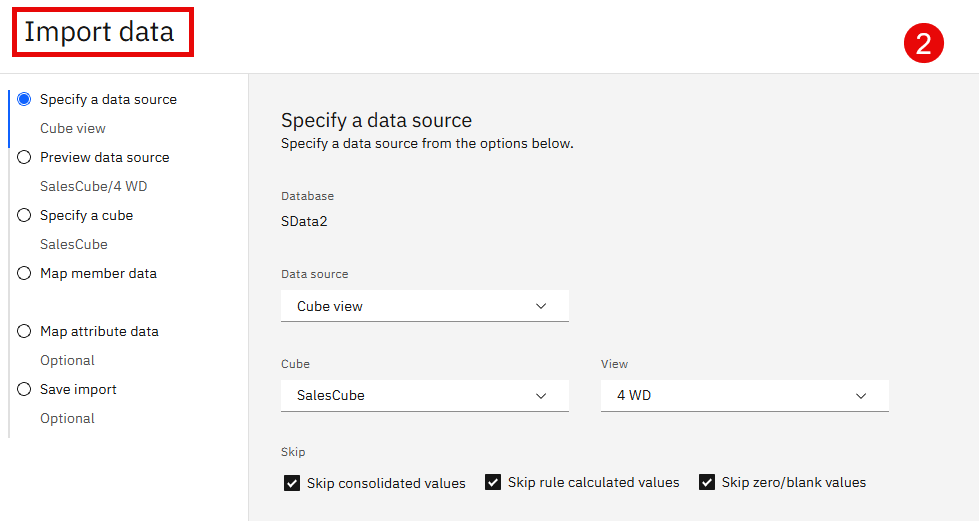
You can now import data from one cube to another by using an existing cube view as the source.
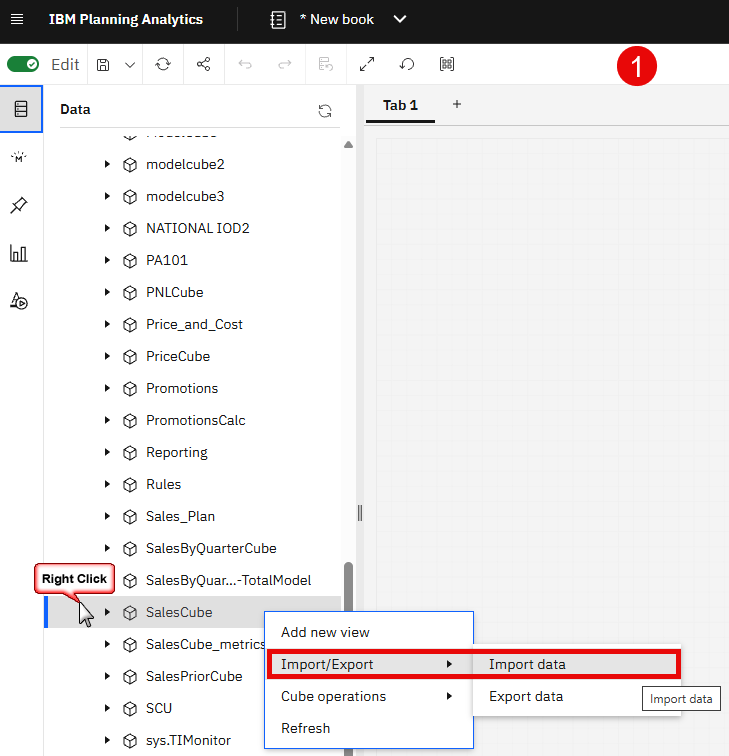
When you start a guided import, select Cube view,
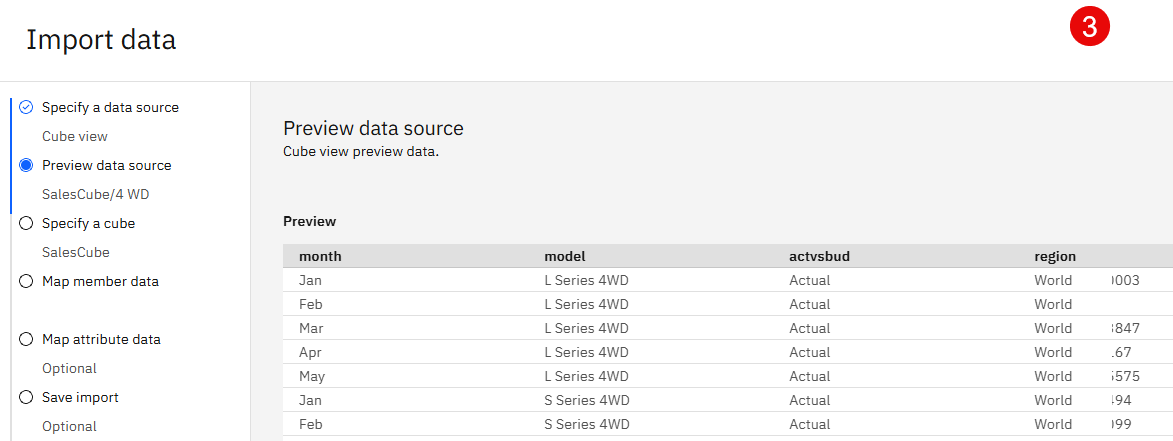
Preview the available data,
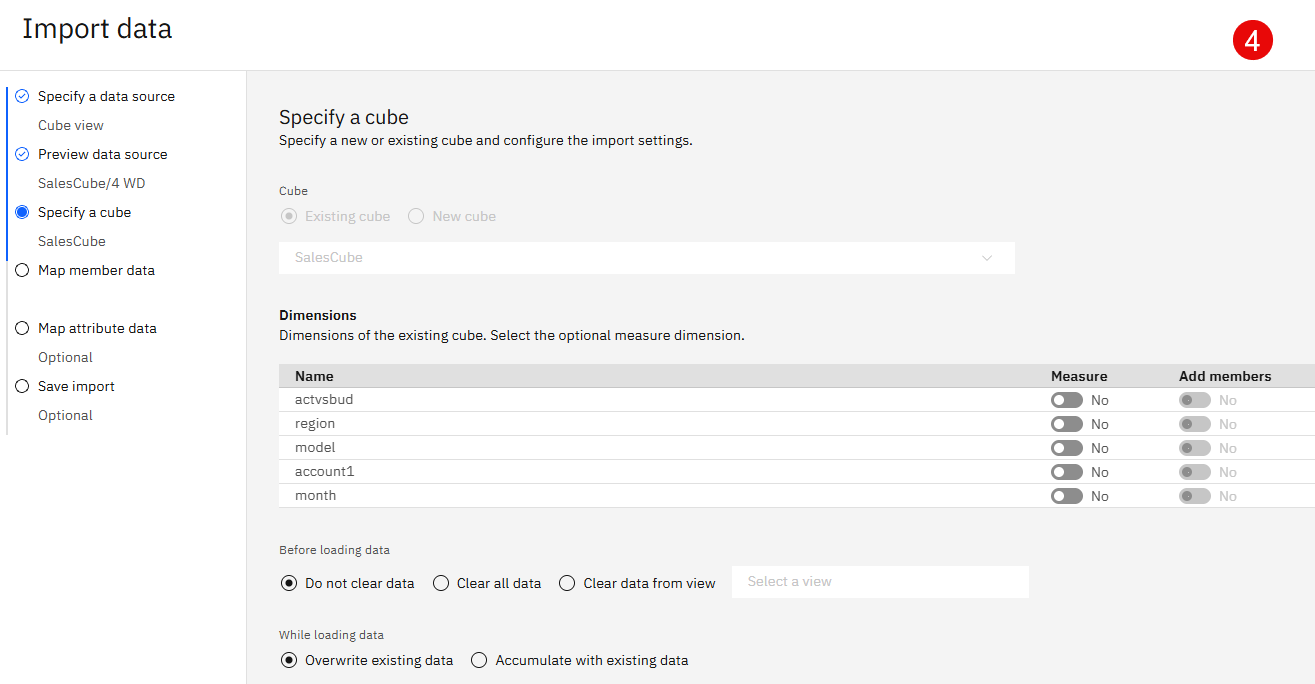
and map it to the target cube.
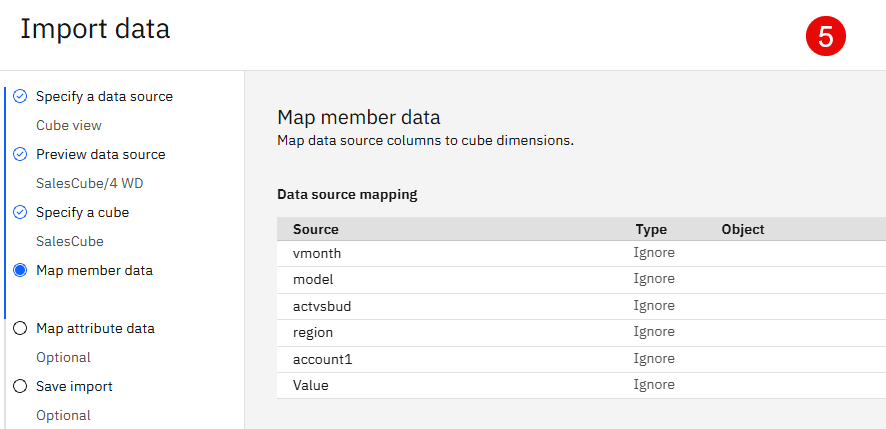
After validation, you can choose one of the following:
- Do not save import
- Save import as a process
- Save as a guided import and provide a name
Run and reuse the import to speed up and improve the reliability of recurring data movement.
Guided Import supports importing data from one cube to another by using an existing cube view as the data source.
In addition to local cube views, you can import data from cubes on remote TM1 servers by selecting TM1 connection as the data source.
After connecting, you can browse available cubes and views on the remote server, preview the data, and map it to the target cube.
Important: When using guided imports with cube views, especially large or complex ones, the import can take a long time.
The duration depends on the number of rows returned by the view and the available database resources.
You can cancel the import process at any time during execution.
Once saved, guided imports become new database objects.
You can perform the following actions:
- Open – Edit the import definition.
- Run import – Execute it immediately.
- Generate process – Convert the guided import to a TM1 process.
- Duplicate – Create a copy for variations.
- Delete – Remove the import.
- Refresh – Update the displayed list in Database explorer.
- Scheduling
To schedule a guided import:
- Generate a process from the import.
- Add the process to a chore.
What’s new in administration
The following new and changed features in administration are available in Planning Analytics Workspace 2.1.20.
Authorise REST API access with the OAuth client
Use the OAuth client to allow external applications and services to securely access Planning Analytics Workspace REST APIs on behalf of users.
This capability eliminates the need to distribute individual API keys and enables centralised management of authorised applications.
Environment administrators can register an OAuth client and manage authorisation for third‑party tools that require access to Planning Analytics resources, including REST APIs used by integrations and agent‑based tools.
OAuth authorisation uses an interactive login flow and provides controlled, auditable access to Planning Analytics features.
To configure an integration with the OAuth client, from Planning Analytics Administration, click Integrations, then select OAuth client.
Force stop an active TM1 12 database backup
Cancel an active TM1 12 database backup by using the Force stop action in Planning Analytics Administration.
You no longer need to wait for a backup to complete if it is running longer than expected or becomes unresponsive, which provides greater control during database administration and recovery scenarios.
When a backup is in progress, click the Details tab for the database to open the database controls and click Force stop. This action is available to users who have the Administrator role.
Update user email addresses(local only)
Update the email address associated with a user account in Planning Analytics Administration for Planning Analytics Local.
Administrators can now modify the email address field for existing users, rather than using only the original value.
You can update a user’s email address from the Users and Groups area in the Planning Analytics Administration.
After selecting a user account, you can edit the email address and apply the change. This capability is available only in Planning Analytics Local, where email addresses are not used as user identifiers.
What’s new in AI assistant
The following new and changed features in Planning Analytics AI assistant are available in Planning Analytics Workspace 2.1.20.
Use generative AI tools for cube analysis and automation
Access an expanded set of generative AI tools through the MCP server to analyse and work with Planning Analytics data programmatically.
These tools extend existing cube tools and enable advanced agent‑driven workflows such as outlier detection, impact analysis, and natural language summaries.
You can run an analysis on cube data by referencing a saved view or by providing an MDX query string, and limit the analysis to a specific range of rows and columns.
You can also use the tools to manage cubes and processes, including saved views and TurboIntegrator processes.
Analysis results include both structured output and generated natural‑language summaries, so you can interpret patterns and key drivers in the data.