

Key call-outs in this release
What’s new in Books and Reporting
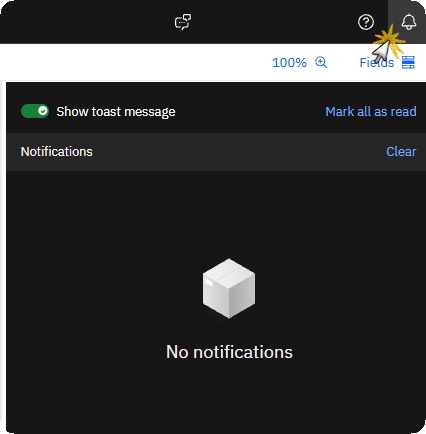
View and manage notifications in the notification panel
You can access a centralised notification panel to view in‑product messages that are generated while you work in Planning Analytics Workspace. Examples of notifications include those generated when you save a book, run a process from an action button, or execute a forecast. Notifications remain available in the panel for later review. You can also choose to silence toast notifications and receive notifications only in the panel. The notification panel is available across all areas of Planning Analytics Workspace, including modelling, books, reports, analysis, and administration.
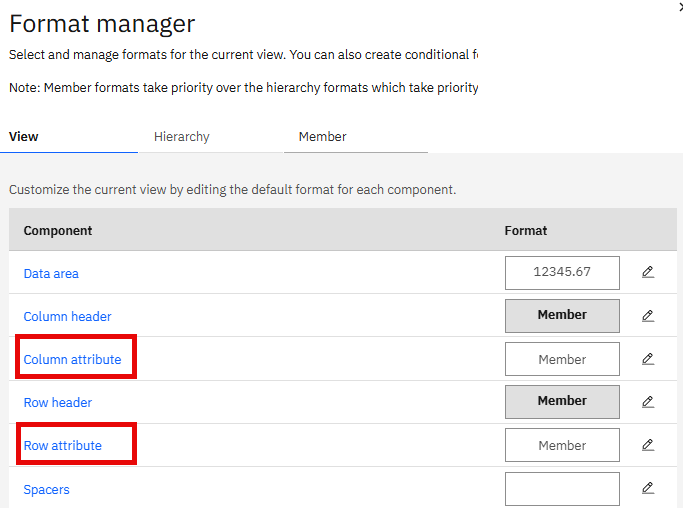
Format attribute rows and columns in cube views.
You can now apply format settings to attribute rows and columns in cube views by using the Format manager. The rows and columns attributes appear between the member names and the data on each axis. They are presented in the header area as display‑only and do not support updating attribute values. To configure attribute formatting for rows and columns, open the Format manager from the cube view toolbar, select the View tab, and then select Column attribute or Row attribute.
What’s new in plans and applications
Contribution panel improvements
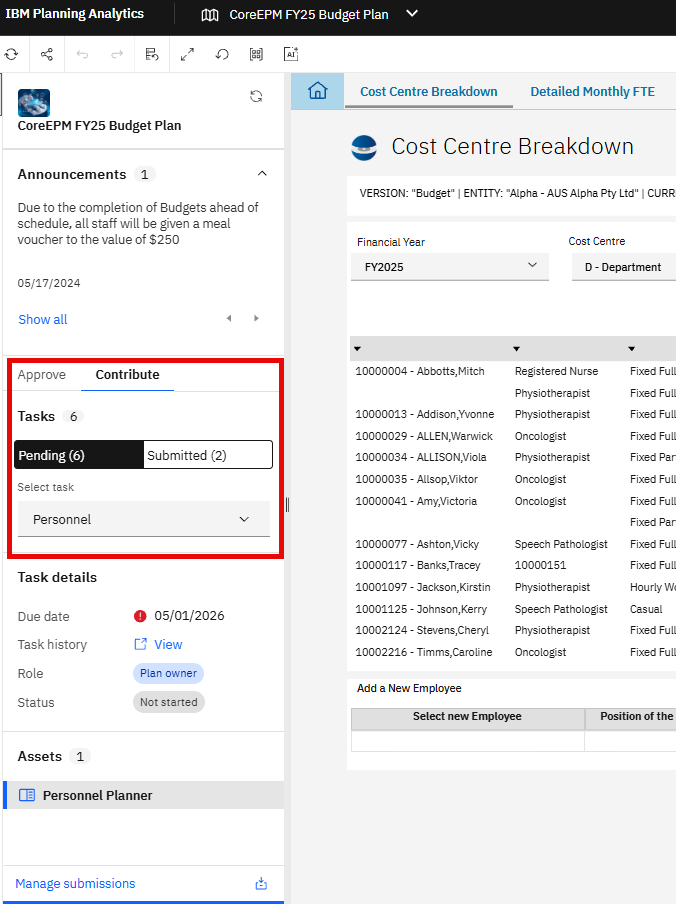
The contribution panel in plans has an improved visual design with clearer button labels.
The contribution panel features an enhanced visual design with clearer information presentation. The button labels have been improved to provide clearer, more context-rich guidance for different task types.
For regular tasks, the panel displays the Revert submission button. When working on data accountability tasks, the button label changes to “Revert member submission” to reflect the specific action. Task completion control is managed through the Manage completion and Revert member completion buttons.
These improvements apply automatically to all plans.
Viewer assignment in workspace plans
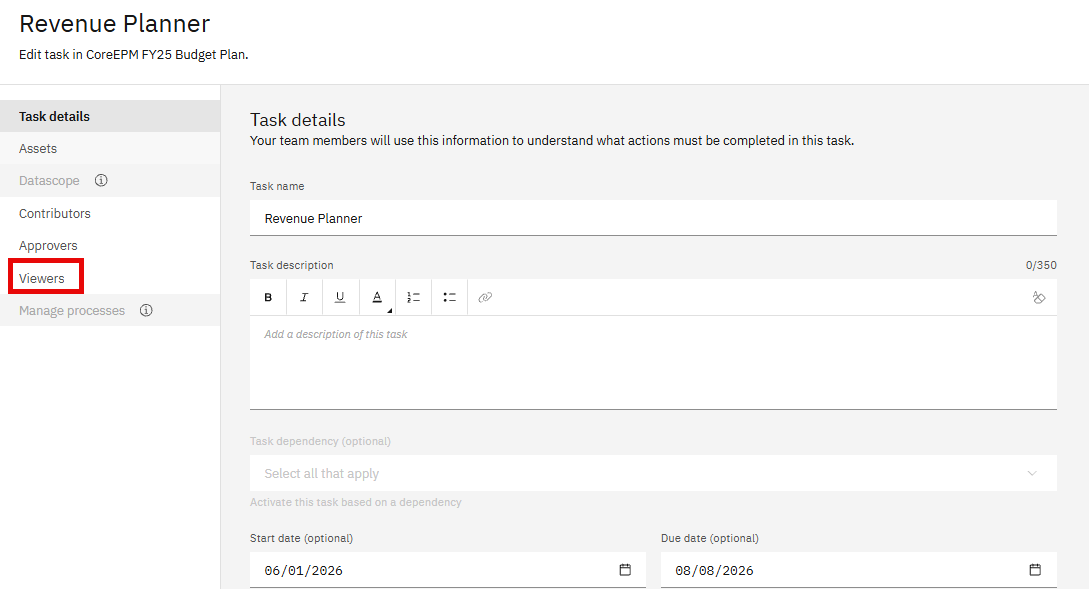
Tasks in workspace plans now include a viewer assignment in addition to contributor and approver assignments. This assignment type is supported in both regular tasks and data accountability tasks.
When you assign a group with viewer access, users in that group can view data but cannot take ownership, submit, approve, reject, or change the task state. Users with viewer assignment do not see action buttons in the task panel.
To assign viewers, you select a workspace group for a regular task or a member in a data accountability task. If you assign viewers to a consolidated member in a data accountability task, the assignment applies to the consolidated member and all descendant members.
If a group contains users with multiple assignments to the same members, those users retain their higher-level permissions. For example, users with both viewer and contributor assignments can take ownership of tasks and submit them.
What’s new in modelling
Split view and Diff view for comparing rules edits
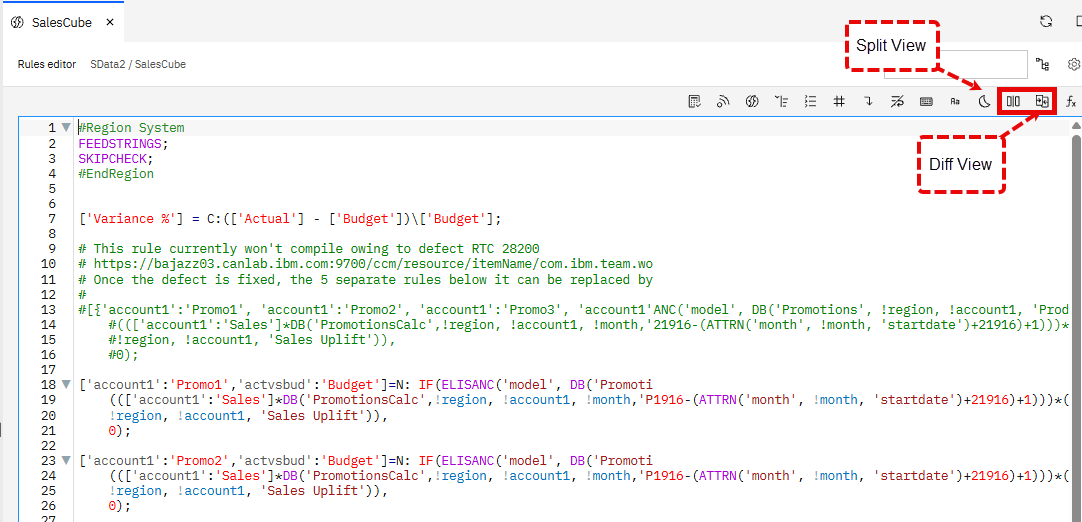
You can use split view to edit different parts of a rules script side by side, and use Diff view to compare your unsaved changes with the saved version.
Split view opens a second script panel, allowing you to review and update multiple sections simultaneously. This helps when you need to, for example, compare feeders with other parts of your rules. To use split view, you open a business rule and click Split view.
Diff view highlights differences between the unsaved edits you or another Modeller made to the rule and the current saved version. This helps you detect merge conflicts when other users update the same rules, preventing unintentional overwrites. To use Diff view, you click the Diff view icon.
You can configure the number of context lines displayed in Diff view through Preferences for Rules. The default shows 5 lines before and 4 lines after each change.
What’s new in administration
Watsonx Orchestrate agentic chat assistant integration
You can use the WatsonX Orchestrate agentic chat assistant with multilingual support and expanded commands.
The Watsonx Orchestrate assistant replaces Watson Assistant and is available across Planning Analytics Workspace. It supports multiple languages based on your browser settings, though AI features like chart insights remain English-only.
You can open books, workbenches, or plans by name, list users and groups, view group membership, and switch between areas. The assistant provides how-to guidance for modelling and writing TurboIntegrator scripts. All commands execute directly without disambiguation. If you trigger a command in the wrong area, the assistant provides feedback.
Configuring custom agents.
You can configure custom agents for specific areas by adding the perspectives parameter to the wxo_agent section of your configuration JSON. Valid options include pa-home, pa-administration, dashboard, modelling, modelling-home, pa-plan, and pa-report.
For more information, see Configuring the integration with a custom agent in IBM® watsonx Orchestrate to support agentic chat.